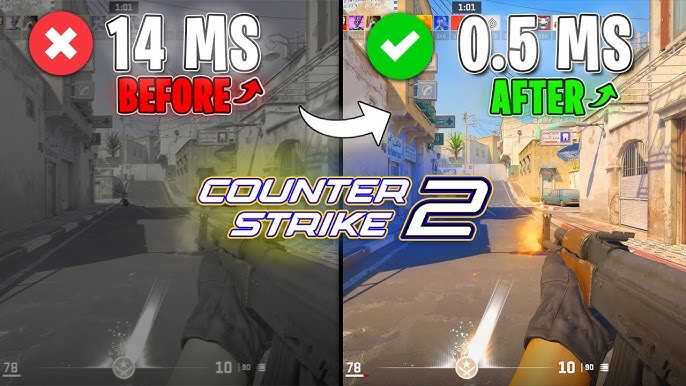
As gamers, experiencing lag can be frustrating and detrimental to performance. Fortunately, mastering CS2 commands to fix lag can significantly improve your gaming experience. By following effective command strategies, you can optimize your network connection, boost frame rates, and adjust graphics settings. In this guide, we will explore various commands and tweaks to elevate your gameplay and reduce lag, ensuring you stay ahead in competitive matches. Let’s dive into the essential CS2 commands that will help you achieve a seamless gaming experience.
Step 1: Network Commands – Check Your Connection
To start improving your gaming experience in CS2, it’s crucial to check your network connection. The following CS2 commands to fix lag will help you assess your current connection and identify any potential issues.
Key Commands:
ping: This command measures the latency to the game server.- Usage:
ping [server IP] - Purpose: Helps you understand if high ping is causing lag.
- Usage:
net_graph 1: Displays your connection statistics on-screen.- Information Provided:
- Ping: Current latency.
- Loss: Packet loss percentage.
- Choke: Number of packets that didn’t reach the server.
- Information Provided:
cl_cmdrate [value]: Sets the rate of commands sent to the server.- Recommendation: Match it to your FPS for optimal performance.
cl_updaterate [value]: Defines how often your client receives updates from the server.- Tip: Set this to a value that your network can consistently support.
By utilizing these CS2 commands to fix lag, you ensure that your connection is stable and well-optimized, setting a solid foundation for smooth gameplay.
Step 2: FPS and Performance Commands
Improving your game’s performance and boosting your FPS (frames per second) is crucial to reducing lag. CS2 Commands to Fix Lag can significantly enhance your gameplay experience. Here are some essential commands you should consider:
- cl_fps_max 60: Caps your FPS to 60 for a stable experience.
- cl_showfps 1: Displays your current FPS in the top corner, helping you monitor performance.
- mat_queue_mode 2: Enables multi-threading for better CPU optimization.
Comparison of FPS Settings
| Command | Effect | Recommended Use |
|---|---|---|
cl_fps_max | Limits max FPS for stability | Prevents frame drops |
cl_showfps | Shows real-time FPS | Useful for monitoring |
mat_queue_mode | Improves CPU efficiency | Ideal for performance boost |
Utilizing these CS2 Commands to Fix Lag will not only smooth out your game but also provide you with a clearer understanding of your FPS performance. Regularly check and adjust these settings according to your system capabilities for optimal gameplay.
Step 3: Graphics Settings Commands
Optimizing graphics settings significantly impacts your gaming experience in CS2. Lag can often stem from high graphical demands on your system. By utilizing specific CS2 Commands to Fix Lag, you can streamline performance without compromising quality. Here are essential commands to consider:
- r_drawtracers_firstperson 0: Disables bullet tracers in first-person view, reducing graphical load.
- mat_queue_mode 2: Adjusts the threading model for better performance.
- cl_detaildist 0: Lowers the detail distance, easing the strain on your GPU.
Comparison of Graphics Settings
| Setting | Impact | Recommended Value |
|---|---|---|
| r_drawtracers_firstperson | Reduces Lag | 0 |
| mat_queue_mode | Performance Boost | 2 |
| cl_detaildist | GPU Usage | 0 |
Implementing these CS2 Commands to Fix Lag allows you to enjoy a smoother gameplay experience without unnecessary distractions. Make these adjustments, and you should notice a decrease in lag and an improvement in your overall performance.
Step 4: Monitor and Tweak
To enhance your gaming experience, monitoring and tweaking your settings is crucial. Using the right CS2 Commands to Fix Lag can make a significant difference in gameplay. Here’s how you can stay on top of your game performance:
- Monitor Your FPS: Use the command
to display frames per second (FPS) on your screen. This helps you determine if lag affects your performance.cl_showfps 1 - Adjust Network Rates: Use
,rate
, andcl_cmdrate
commands to optimize your packet flow:cl_updaterateCommand Recommended Value Effect rate786432 (high-speed connection) Optimizes data transfer cl_cmdrate64-128 Improves responsiveness cl_updaterate64-128 Reduces lag spikes - Tweak Graphics Settings: Lower graphic details using commands like
ormat_texture_list
to lower dynamic lighting. These adjustments can free up system resources, leading to smoother gameplay.r_dynamic
By implementing these CS2 Commands to Fix Lag, you’ll notice smoother performance and a more enjoyable gaming experience. Regularly tweak and monitor your settings to stay ahead of lag issues.
Quick Command Summary
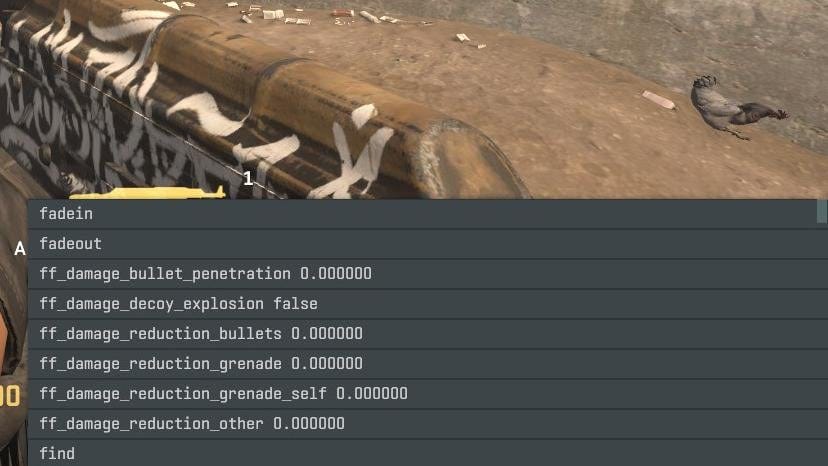
To effectively improve game performance using CS2 Commands to Fix Lag, here’s a concise overview of essential commands that you can utilize:
Network Commands
net_maxspeed: Adjust your maximum speed setting to optimize connectivity.rate: Set your download rate; common values range from 20,000 to 30,000 for smoother gameplay.cl_cmdrateandcl_updaterate: Ensure both are set to match your server’s tick rate (ideally 64 or 128).
FPS and Performance Commands
cl_showfps 1: Displays your frames per second (FPS) to monitor performance.fps_max: Limit your FPS to reduce lag spikes; experiment with settings between 60 and 144.
Graphics Settings Commands
mat_queue_mode: Change to
for multi-threading, allowing better resource utilization.-1r_dynamic: Disable this by setting it to
for improved frame rates.0
Using these CS2 Commands to Fix Lag can significantly enhance your gaming experience. Make adjustments based on your personal preferences and hardware capabilities.
Conclusion
In summary, optimizing your gaming experience in CS2 requires a combination of thoughtful tweaks and the right commands. By utilizing the CS2 Commands to Fix Lag, you can significantly improve your connection quality and overall performance. To recap:
- Network Commands: Monitor your connection and address any latency issues.
- FPS and Performance Commands: Enhance your frame rates, resulting in smoother gameplay.
- Graphics Settings Commands: Adjust visual settings for better performance without compromising too much on quality.
Remember, CS2 Commands to Fix Lag are just one part of maintaining a seamless gaming experience. Regularly monitor your system performance and adjust settings as needed. With the right adjustments, you can ensure that lag becomes a thing of the past, allowing you to focus on what truly matters—dominating the competition and enjoying every match!
Frequently Asked Questions
What are some common commands in CS2 to fix lag issues?
In CS2, several commands can be useful for alleviating lag issues. Some of the most commonly used commands include ‘cl_updaterate’, ‘cl_cmdrate’, and ‘rate’. The ‘cl_updaterate’ command sets the number of updates per second that the client receives from the server, while ‘cl_cmdrate’ determines how many commands per second are sent to the server. ‘rate’ adjusts the data rate in bytes per second, which is crucial for certain internet connections. Adjusting these values based on your connection type can enhance gameplay experience.
How do I access the console to input commands in CS2?
To access the console in CS2, you typically need to enable it in the game settings. Go to the ‘Game Settings’ section from the main menu, and find the option labeled ‘Enable Developer Console’ or ‘Toggle Console’. Set this option to ‘Yes’ or ‘On’. Once enabled, you can access the console by pressing the tilde key (~) on your keyboard during gameplay, allowing you to enter any commands you wish to use for fixing lag or other adjustments.
Is there a specific configuration for optimal performance in CS2?
For optimal performance and reduced lag in CS2, specific configurations are recommended. Begin by ensuring your graphic settings are balanced; lower settings such as texture quality and shadow detail can significantly enhance performance. Additionally, commands like ‘fps_max 60’ help cap your frame rate, ensuring smoother gameplay. Also, consider adjusting your ‘binds’ for action commands to improve response time. Regularly keeping your graphics drivers updated and closing background applications before gameplay can further contribute to smoother performance.
What internet connection specifications are ideal for playing CS2 without lag?
For playing CS2 without lag, an internet connection with a minimum speed of 3 Mbps download and 1 Mbps upload is recommended. However, faster speeds, ideally above 10 Mbps download and 5 Mbps upload, significantly enhance the gaming experience by reducing latency and ensuring smoother gameplay. It is also advisable to use a wired Ethernet connection instead of Wi-Fi when possible, as this minimizes interruptions and consistency issues often associated with wireless connections.
After you shortlist a finish, compare CS2 market guides on CSOffer me and complete the trade on Skin.Trade.