In the world of gaming, achieving the optimal frame rate is crucial for a fluid and immersive experience. Counter-Strike 2, or CS2, continues this tradition, pushing players to maximize their FPS (Frames Per Second) and enhance gameplay. However, understanding how to limit or remove the FPS cap can significantly impact performance and responsiveness. Whether you’re a competitive gamer seeking an edge or a casual player looking to optimize your setup, knowing the right techniques and commands to adjust FPS in CS2 can make all the difference. Let’s explore the ins and outs of FPS management to elevate your CS2 experience.
What are FPS in CS2?
FPS, or Frames Per Second, refers to the number of individual frames or images displayed on your screen every second while playing a game like CS2 (Counter-Strike 2). It is a critical measure of game performance and visual fluidity.
Higher FPS can greatly enhance your gaming experience. As the FPS increases, the game appears smoother and more responsive, which is particularly important in fast-paced games like CS2. Several factors influence FPS in a game, including:
- Graphics settings: Higher settings demand more processing power.
- Hardware: Advanced hardware typically delivers higher FPS.
- Optimization: Some games are better optimized for certain systems.
Here is a simple way to understand FPS quality:
| FPS Range | Experience |
|---|---|
| 30 FPS | Considered the minimum for playable gameplay. |
| 60 FPS | Ideal for a smooth experience without noticeable lag. |
| 120+ FPS | Preferred by competitive players for superior responsiveness. |
In summary, understanding FPS in CS2 helps you optimize your settings and hardware for the best possible gaming experience.
How to Increase FPS in CS2
Improving your FPS (Frames Per Second) in CS2 can elevate your gaming experience by providing smoother graphics and enhancing your gameplay responsiveness. Here are some efficient strategies to increase your FPS:
- Update Graphics Drivers: Ensure that your graphics card drivers are up-to-date. Manufacturers frequently release updates that optimize performance for games like CS2.
- Lower Graphics Settings: Adjust the in-game graphics settings. Reducing shadow quality, texture detail, and disabling unnecessary effects can significantly boost FPS.
- Close Background Applications: Shutting down non-essential programs running in the background can free up system resources, allotting more power for CS2.
- Optimize Power Settings: Shift your computer’s power settings to ‘High Performance’. This adjustment prevents your system from throttling power usage during gameplay.
- Increase Virtual Memory: Enhancing your system’s virtual memory can prevent potential bottlenecks due to insufficient RAM, thus improving frame rates.
By implementing these strategies, you can effectively increase your FPS in CS2, resulting in improved game performance and a more enjoyable gaming session.
Should You Limit FPS in CS2?
Limiting FPS in CS2 can offer several advantages depending on your specific situation. Here is why you might consider capping your FPS:
- System Stability: Limiting FPS can reduce strain on your hardware, which may prevent overheating and improve the longevity of your system components.
- Consistency: A consistent frame rate ensures smoother gameplay. This can be particularly important if you experience frequent fluctuations at higher FPS.
- Power Efficiency: Running your system at a lower frame rate can decrease power consumption, making it more energy-efficient and reducing your overall energy costs.
- Screen Syncing: If your monitor has a refresh rate lower than your FPS, capping it to match the refresh rate can eliminate screen tearing and deliver a smoother visual experience.
However, consider leaving FPS uncapped if you possess high-end equipment capable of handling higher frame rates consistently for the most responsive gameplay. Ultimately, whether to limit FPS depends on the balance between performance needs and hardware capabilities.
FPS Settings
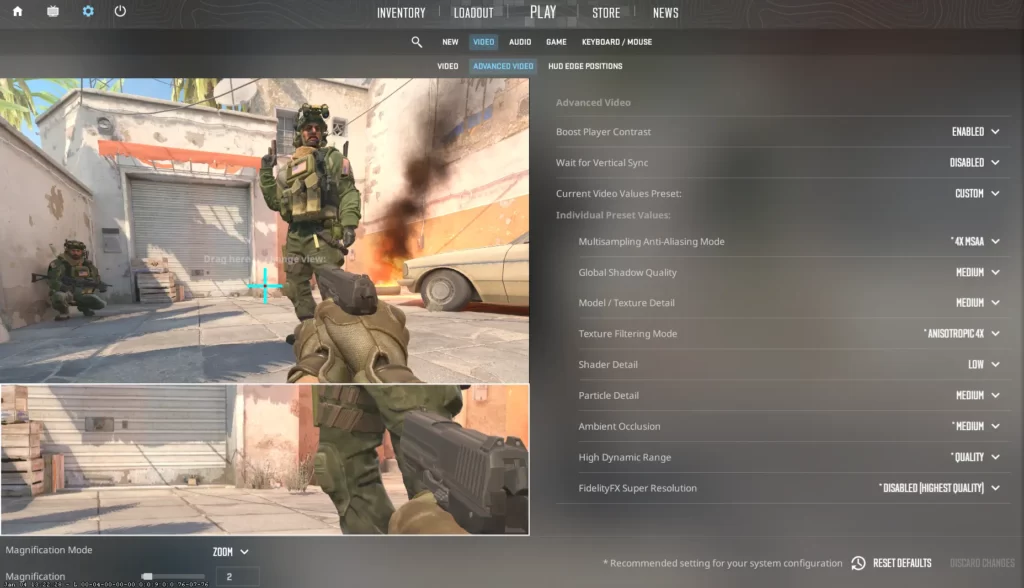
To maximize your gaming experience in CS2, understanding and adjusting FPS settings is crucial. Firstly, navigate to the game’s settings menu where you’ll find a dedicated section for video settings. Here, you can fine-tune several parameters to enhance performance:
- Resolution: Lowering the resolution can significantly boost FPS, though it may affect visual quality.
- Graphics Quality: Opt for lower settings like ‘Low’ or ‘Medium’ instead of ‘High’.
- V-Sync: Disabling V-Sync helps reduce input lag and increases FPS.
- Anti-Aliasing: Lowering or turning it off can improve performance, though it may introduce jagged edges.
- Shadows and Textures: Setting these to ‘Low’ can free up system resources.
These adjustments can lead to a smoother gaming experience without the need for hardware upgrades. It is important to find the right balance between performance and visual quality, so feel free to experiment with different settings to achieve optimal results. Additionally, remember to keep your graphic drivers updated to support these settings effectively.
How to Limit or Reduce FPS in CS2
Limiting or reducing the FPS (frames per second) in CS2 can help improve the game’s stability, decrease system load, and even enhance gameplay for certain setups. Here are a few methods to achieve this:
- In-Game Settings: Navigate to the graphics settings in CS2 and look for an option such as “Max FPS” or “Frame Rate Limiter”. Adjust this setting to your desired frame rate.
- Console Commands: Open the game’s console by pressing the tilde (
) key. You can use the command~
to set the maximum FPS. Replacefps_max [value]
with the desired number.[value] - Graphics Card Software: If you’re using a dedicated GPU, such as NVIDIA or AMD, you can also set an FPS limit using their control panel. This ensures the game doesn’t exceed a certain frame rate.
- V-Sync: Enabling V-Sync synchronizes your game’s frame rate with your monitor’s refresh rate, providing a natural frame rate cap.
By employing these techniques, you can effectively manage your FPS for a smoother and more tailored gaming experience.
More FPS Commands
Expanding your toolkit of commands can greatly enhance your control over the frames per second (FPS) in CS2. Some of these additional commands allow for more precise adjustments and can improve performance based on your system’s capabilities. Here are some noteworthy commands:
- fps_max: Allows you to set a specific FPS cap. For instance, typing
locks your FPS at 144, suitable for monitors with a 144Hz refresh rate.fps_max 144 - fps_min: Sets a minimum threshold for FPS, ensuring a base level of performance.
- mat_queue_mode: Controls the CPU threading mode, which can affect FPS.
typically allows the game to auto-select the most suitable mode.mat_queue_mode -1 - cl_showfps: Displays your current FPS, useful for real-time monitoring of performance changes.
These commands enable fine-tuning according to hardware capabilities and individual preferences. By using them, players can tailor their gaming experience, striking a balance between visual quality and performance. As a result, you achieve smoother gameplay while potentially reducing system strain.
Use FPS Commands
Utilizing FPS commands can significantly enhance your gaming experience in CS2 by allowing you to customize your frame rate settings according to your preferences. Here’s how you can use these commands effectively:
- cl_showfps 1: Displays your current FPS count in the top corner, helping you monitor performance in real-time.
- fps_max [value]: Sets a hard cap on your FPS. Replace “[value]” with your desired frame rate limit. For instance, use
to cap at 144 FPS.fps_max 144 - fps_max_menu [value]: Controls the FPS cap specifically for game menus. Keep this lower to save resources while browsing menus, like
.fps_max_menu 60
Using these commands allows you to balance performance with system demands. Lower FPS caps can lead to smoother gameplay on less powerful machines, while higher caps might benefit high-end systems. You can enter these commands directly into the game’s console, accessible through the in-game options. Always remember to test different settings to find the optimal balance for your particular hardware setup.
Console Commands
To manage the FPS settings more efficiently in CS2, using console commands can be incredibly beneficial. These commands allow players to customize their gaming experience by optimizing performance and graphics. Here’s how you can utilize them:
- Open the Console: First, ensure that the developer console is enabled. You can do this by navigating to the game settings, then finding the “Enable Developer Console” option and switching it to “Yes.”
- Access the Console: Press the
key (typically located below the~
key) to open the console.Esc - Key Commands:
fps_max [value]: This command sets the maximum FPS value. For example,
will cap the FPS at 144.fps_max 144fps_max 0: Use this command to remove any FPS cap, allowing the game to run at the maximum frame rate your hardware can handle.cl_showfps 1: This command will display your FPS on screen, allowing you to monitor in real-time.
Applying the right console commands can significantly enhance your gaming experience by providing smoother graphics and reducing lag issues.
For a second look at cash market prices, open CS2 market guides on CSOffer me. Skin.Trade stays the place to buy CS2 skins or sell CS2 skins.