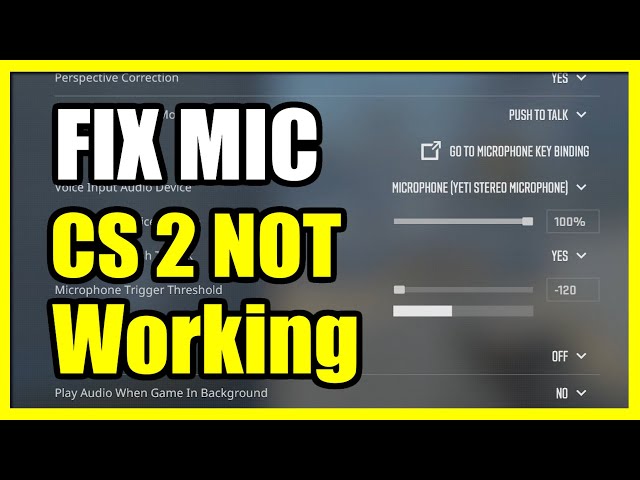
If your CS2 mic is not working, it can be incredibly frustrating, especially during critical moments in gameplay when communication is essential. Fortunately, resolving this issue doesn’t have to be complicated. From checking your microphone connections to updating drivers and adjusting in-game settings, there are several steps you can take to pinpoint and fix the problem. Whether it’s a software glitch or hardware-related, this guide will walk you through practical solutions to get your microphone working again, ensuring seamless communication in CS2. Let’s dive into the steps to troubleshoot and resolve the issue efficiently!
Check Your Microphone Connections
If your CS2 Mic Is Not Working, the first step is to ensure that your microphone connections are secure and properly configured. Often, simple connection problems can lead to audio issues.
Here’s what to check:
- Physical Connection: Ensure your microphone is securely plugged into the correct port on your computer or headset.
- Correct Device Selection: Confirm that your PC recognizes the microphone as the default audio input device.
- Loose or Damaged Cables: Inspect the cable for any visible wear or damage that might affect performance.
Additionally, ensure that no other device is interfering with the connection. Wireless microphones or headsets may fail if there’s a Bluetooth pairing issue. Reconnecting the device or plugging it into a different port can often fix the issue.
By thoroughly checking these basic yet crucial connections, you may resolve the issue without diving into more complex troubleshooting steps. If the CS2 Mic Is Not Working even after verifying the connections, proceed to the next step in identifying the problem.
Update Your Audio Drivers
If your CS2 mic is not working, outdated or corrupted audio drivers could be the culprit. Audio drivers act as the communication bridge between your hardware and software, so keeping them updated is crucial to avoid compatibility issues.
Follow these steps to update your audio drivers:
- Access Device Manager: Press and select “Device Manager” from the list.
Win + X - Find Audio Inputs and Outputs: Locate the “Audio inputs and outputs” category and expand it.
- Update Driver: Right-click on your microphone device, then click “Update driver.”
- Choose Update Option: Select “Search automatically for updated drivers.” Windows will now look for the latest driver version and install it.
Should Windows fail to find the latest driver, visit your audio device manufacturer’s website or your PC/laptop manufacturer’s support page. Download and install the latest driver manually.
Regularly updating audio drivers ensures optimal performance and can resolve issues like your CS2 mic not working. After updating, restart your computer and try using your microphone again in the game. If this step doesn’t work, proceed to check other potential causes.
Verify In-Game Audio Settings
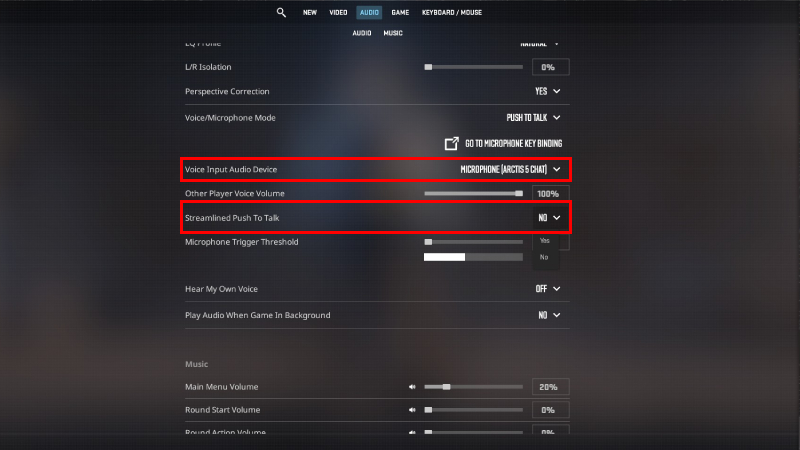
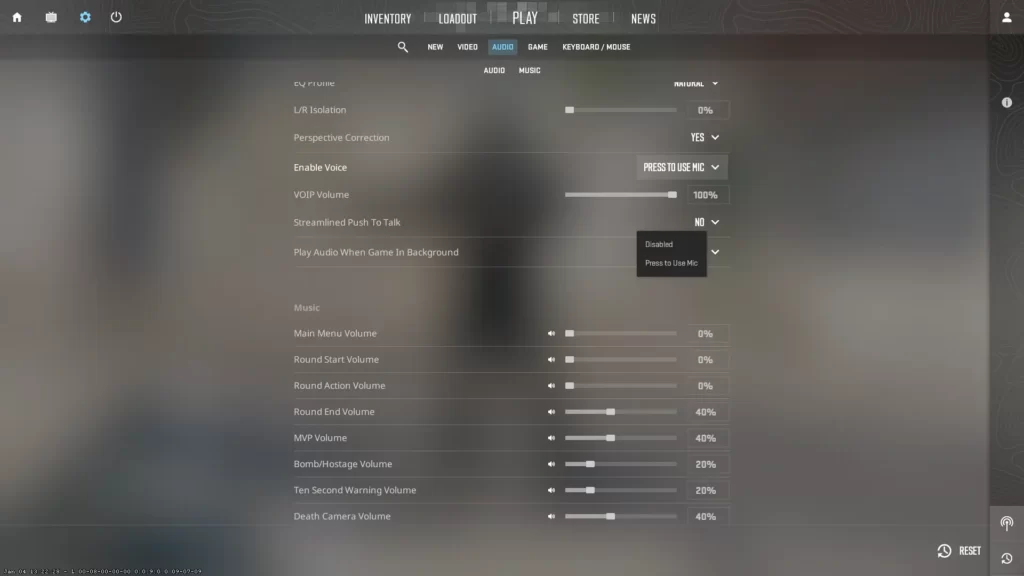
If your CS2 mic is not working, it might be due to incorrect in-game audio settings. Ensuring that everything is properly set inside the game can quickly resolve the issue.
Here’s a quick checklist to verify in-game audio settings:
- Enable the Microphone: Navigate to the in-game settings menu and confirm that the microphone is turned on.
- Default Audio Device: Double-check if CS2 is using the correct audio device. Sometimes the game may be linked to the wrong input device.
- Push-to-Talk Issue: If you’re using a push-to-talk button, ensure the assigned key is functioning properly and matches your intended input.
- Microphone Volume: Adjust the microphone volume within the game to an audible level. Low volume or muted settings can often cause communication problems.
After making these changes, test your microphone by joining a match or using the game’s testing feature if available. Verifying these configurations can help fix most of the CS2 mic is not working complaints, enhancing your gaming experience.
Adjust Windows Sound Settings
If your CS2 mic is not working, the issue might stem from incorrect sound settings on Windows. Adjusting these settings can sometimes resolve connectivity and input problems. Follow these steps:
- Access Sound Settings:
- Right-click on the speaker icon in your taskbar and select “Sounds”.
- Navigate to the “Recording” tab.
- Select the Correct Microphone:
- Identify your microphone from the list of devices.
- Right-click it and choose “Set as Default Device”.
- Check Input Levels:
- With your microphone selected, click “Properties”.
- Go to the “Levels” tab and ensure the input volume is sufficient (not muted or too low).
- Compatibility Check:
- Under the “Advanced” tab, ensure the format matches your mic’s specifications.
- Disable the “Allow applications to take exclusive control” option to avoid potential conflicts.
Making these changes can often fix the frustrating issue of a CS2 mic not working. If the problem persists, proceed to test your microphone on another device to rule out hardware-related concerns.
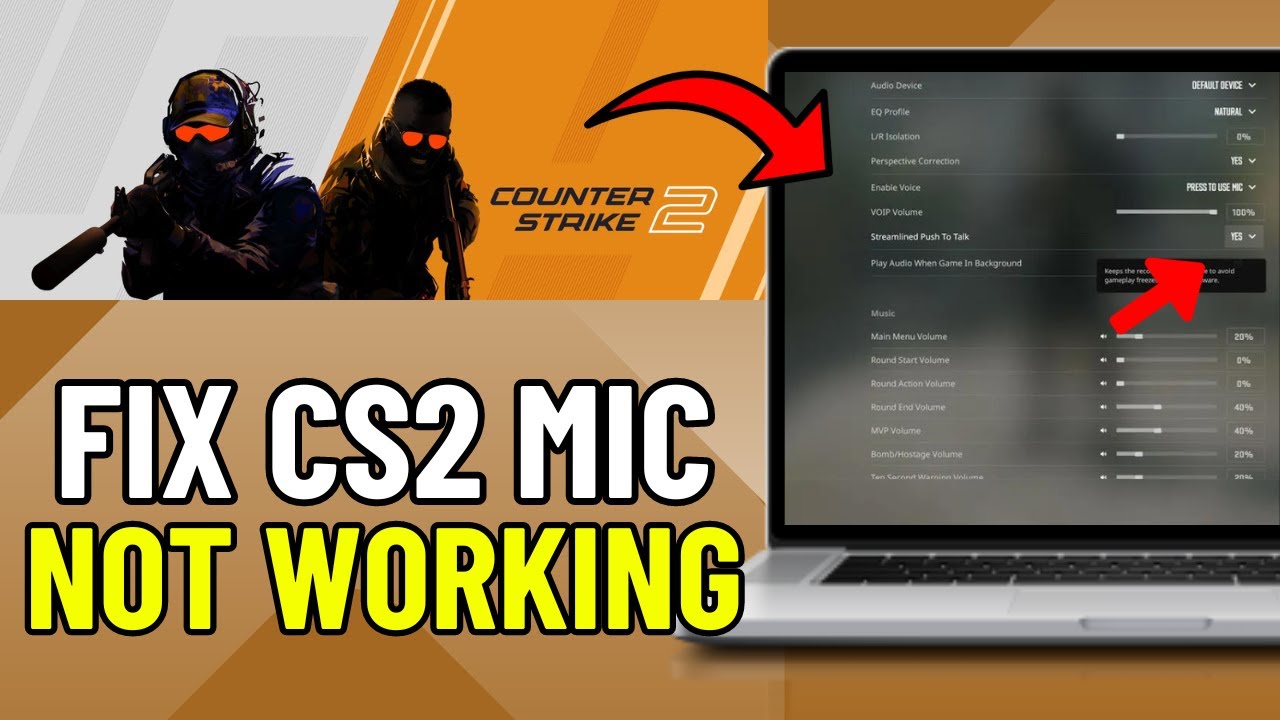
Test Your Microphone on Another Device
If your CS2 mic is not working, it might be due to an issue with the microphone itself. Testing the mic on a different device helps determine whether the problem lies with your computer or the microphone hardware.
Follow these steps to test it:
- Connect to another device: Plug your microphone into another computer, gaming console, or even a smartphone.
- Record or call test: Use a voice recorder app or make a call to check if the sound is clear.
- Perform basic troubleshooting: Ensure the mic isn’t muted, and all connections are secure.
If the microphone works fine on another device, then the issue most likely lies with your computer settings, drivers, or in-game configuration. However, if the mic still fails, it might be a hardware problem.
Testing your microphone this way saves time and narrows down possible causes of why your CS2 mic is not working, helping you take appropriate next steps to resolve the issue efficiently.
Disable Third-Party Audio Enhancements
If your CS2 mic is not working, third-party audio enhancements might be interfering with your microphone’s performance. These enhancements are typically designed to improve sound quality but can sometimes conflict with the game’s audio settings, resulting in a non-functional mic.
To disable third-party audio enhancements:
- Access Sound Settings
- Right-click on the sound icon in your taskbar and select “Sound Settings” or “Open Sound Settings.”
- Choose Your Input Device
- Navigate to the “Input” section and ensure your mic is selected as the default device.
- Disable Enhancements
- Click on “Device Properties” or “Additional Device Properties.”
- Go to the “Enhancements” tab (or “Advanced” section for some systems).
- Check the box for “Disable all enhancements” or uncheck any active enhancement options.
- Apply Changes
- Click “Apply” and save the settings.
Disabling these enhancements ensures your mic operates without software interference, improving its functionality within CS2. If CS2 mic is still not working, proceed to the next troubleshooting step.
Contact Support or Consider Hardware Replacement
If all troubleshooting steps have failed and your CS2 mic is not working, it might be time to seek additional help or explore hardware replacement options. First, reach out to the official game or hardware support teams. They can provide insights or fixes you might have overlooked.
Steps to Contact Support:
- Visit the official website or support portal for Counter-Strike 2.
- Provide detailed information about the issue, including any actions you’ve already taken.
- Attach screenshots or logs if available, as they can help in diagnosing the problem faster.
However, if the issue persists even after expert assistance, your microphone hardware could be to blame. Consider upgrading your mic to ensure reliable sound quality. A defective cable, outdated model, or physical damage can often prevent proper functionality.
Signs to Replace Your Microphone:
- It’s unresponsive across multiple devices.
- Physical wear and tear, such as frayed cords.
- Persistent static or sound cutouts.
By addressing these steps, you can effectively resolve the “CS2 Mic Is Not Working” issue and restore seamless communication during gameplay.
Frequently Asked Questions
Why is my mic not working in CS2?
Your mic might not be working in CS2 due to several reasons, such as improper audio settings in the game, outdated or missing audio drivers, or hardware issues with your microphone. It’s important to ensure that your microphone is properly connected, set as the default device in your operating system, and configured correctly in the game’s audio settings menu.
How can I fix microphone issues in CS2?
To fix microphone issues in CS2, first, ensure that your mic is properly plugged in and set as the default communication device in your computer’s sound settings. Then, check the audio settings in CS2 and ensure the correct mic is selected. Ensure the game has permission to access your microphone and troubleshoot drivers by ensuring they are up to date. Finally, test your mic in other applications to rule out device malfunctions.
What should I do if CS2 doesn’t detect my microphone?
If CS2 isn’t detecting your microphone, double-check its connection to your computer and inspect the sound settings to ensure it’s recognized as the input device. Verify that the correct input device is selected in the CS2 sound settings. Additionally, check for permissions that grant CS2 access to your microphone through your operating system’s privacy settings. Updating/reinstalling audio drivers can also help resolve the detection issue.
Can third-party software interfere with the microphone in CS2?
Yes, third-party software such as voice changers, virtual audio cables, or background noise cancellation tools might interfere with your microphone in CS2. These applications can redirect or alter audio input, causing the game to fail in recognizing or properly using the mic. Try disabling such software temporarily and test the microphone in CS2 again. If the issue resolves, adjust the settings of the interfering software.
For a second look at cash market prices, open live CS2 skin prices on CSOffer me. Skin.Trade stays the place to buy CS2 skins or sell CS2 skins.